Blog Archives
Product Review: pitchLogic Softball

For those who have been hiding under a softball-shaped rock over the last few years, data has become an increasingly important part of our sport. Whether it’s statistics about on-base percentages, whiff percentages by pitch location, how much external rotation is being achieved, or other detailed metrics, coaches at all levels are looking to quantify what their athletes are doing to help improve performance.
This obsession also applies to what happens when a pitcher throws a specific type of pitch. Speed is obviously one important metric that has been easily measurable for a number of years, whether it was with a Stalker or Jugs radar gun or more recently with the advent of the PocketRadar.
The other two parameters that are normally listed along with speed are spin and spot, i.e., how the ball is spinning and whether it goes to the location it was supposed to. Spot is fairly easy to determine with your eyes alone; if you know where the ball was supposed to go you should be able to see whether it went there.

That leaves spin. One simple way to determine whether a ball had the correct spin is to mark a stripe or color the seams to make it easier to see the spin direction, then compare that to what is expected for that pitch.
For example, if you’re throwing a curve ball was the spin direction going around the ball at the “equator” (middle of the ball), going from pole to pole (top to bottom or bottom to top), or some variation in between? You also want to see where the spin axis (the point the ball spins around) was, because an improperly oriented spin axis will generally have a negative effect on the quality of the movement.
You can see all of that with your eyes, but it’s still difficult to quantify. And you totally miss another important factor in ball movement: how fast the ball was spinning. You can see if it’s fast or slow, but not HOW fast or HOW slow, which also affects how sharply the ball will break, thus making it harder to hit.
A Rapodo system will give you those types of answers, but those cost thousands of dollars which puts them out of the reach of most individual coaches and bucket parents. You pretty much have to go to a camp, clinic, or measurement event to capture that data, and even then it’s only a single snapshot in time.
In the past, you had the RevFire ball or the Diamond Kinetics ball, which were far more affordable to the average user. But both of those have been long been relegated to the ash heap of history; you can probably still find one on eBay somewhere but all technology has a “best by” date and both of those are long past it.
Fortunately, a new entry into this category was introduced in 2025: the pitchLogic softball. F5 Sports, the manufacturer of pitchLogic balls, has had a baseball version for several years that has become quite popular.
They have now taken that same technology and applied it to fastpitch softball. But is it worth the investment, i.e., does it do the job? The short answer is yes.
If you’re serious about measuring spin direction, spin rate, spin efficiency, and a whole bunch of other parameters and don’t want to break the bank (or your marriage) to do it, you’re going to want to look into this innovative product. Let’s break it down in more detail.
What’s In the Box
This part is pretty simple. It comes with one pitchLogic softball, a Qi-type platform charger, and a short USB A to USB micro cable to connect the charger to a power source. The charger has a small indent in it to keep the ball in place while charging – no O ring necessary (DK ball users know what I’m talking about).
How It Works: The Basics
The pitchLogic softball system consists of two components: a ball with a microchip or some other technological magic inside of it and a free companion app, which you can download from the Apple App Store or Google Play once the ball arrives. The two are connected via Bluetooth, which means you don’t have to have a WiFi signal available to use it.
There are two versions to the app: a player version and a coach version. If you’re a bucket parent who wants to measure your own daughter’s performance and progress, the player version will do you just fine.
It will capture the data from each throw and store it in the cloud for you so you can review it later or even share it with college (or other) coaches. Since you’re only using it with one pitcher it’s really all you need.
The coach version allows you to create a roster so you can track the performance of multiple players, separating them into individual sessions so you can access them as-needed. You just have to remember to select the correct player before you start the session – nota difficult skill but one I’ve already failed on once.
Setting up a player on a roster is easy to do, too. You click on the roster button at the top of the app, click Manage, then click on the plus sign (+) and fill in the requested data. If you want to remove someone from the roster later you click on the minus (-) sign and they are deleted.
The player management section also gives you the ability to share all the data with the pitcher automatically by inputting her (or her parent’s) email address. They will then receive a link that enables them to check it all out themselves whenever they want.
When I purchased the ball it came with five roster spots. If you’re a team coach that’s probably plenty; if you’re an instructor like me it’s not nearly enough, but fortunately you can purchase additional roster spots for an added cost.
Capturing Pitches
Whichever version you have, once the proper player is selected and the ball has been paired to your device, you click on the start session button and then select which type of pitch the pitcher is throwing so it can be tagged in the records. You don’t have to tag the pitches, but it’s definitely helpful, especially when you go back a few days later to review the data or if you want to send it to someone else. Helps to know what type of pitch was being thrown.
The pitcher then throws the pitch and the data immediately shows up on your device’s screen. I generally just use my iPhone because it’s handy, and the key information is pretty readable even to my old eyes.

Hopefully in the future they will add the ability to zoom in by pinching the screen, which would make it even easier while helping the pitcher focus on the right information.
The only caution is that the pitcher has to keep the ball still before she throws the pitch or the app won’t read it. If you have someone who likes to twizzle the ball or spin it in her glove before she throws she’s going to have to remember not to do that for the duration of the session.
So far, I have found that the pitchLogic softball records most, but not all, of the pitches thrown. I’d say it’s around 95% success. Every now and then it will miss one, but it usually captures the next one.
If you have a few missed pitches in a row, stopping the session and then restarting it usually solves the problem. Worst case you can close the app and restart it to reset everything. So far I have not had it totally shut down.
The Data
Ok, here’s where it gets fun. It starts with the clock face, which appears on the top or top left depending on whether you orient your device in portrait or landscape mode. For simplicity I am going to refer to everything’s position in landscape mode.

The clock face gives you three important pieces of data at a glance: the spin direction in blue (including the orientation of the ball), the arm slot in oranage (where the arm was at release), and the last touch on the bal in a darker orange or rust colorl. If your pitcher is having trouble with her spin orientation, that last touch info can be helpful in diagnosing it.
The blue arrow shows the direction in which the ball was spinning. For example, a “perfect” riseball will point to 12:00, a “perfect” drop ball will point to 6:00, and so on. The blue ring shows the orientation of the ball as it is spinning.
So let’s say a right-hander throws a curveball and the arrow points to 9:00, which is the perfect spin for left-to-right. But instead of the ring part being pretty much flat it is a near-perfect circle. That tells you that even though the spin direction was good, the spin axis is tipped either too far forward (most likely) or backward toward the pitcher (unlikely but you never know).
You now know that even though the spin direction was good, you still need to make adjustments to get better, tighter break on the ball. This relationship is also shown under “spin efficiency” at the bottom.
The closer the arrow and ring are being aligned, the higher the efficiency and again the better the pitch will break. Honestly, even though I’d heard that explanation it took me a little time to truly understand. Good news is once you get it it’s pretty easy to understand from then on.
Other metrics that appear along the bottom include pitch speed, total spin or spin rate in revolutions per minute, vertical movement, horizontal movement, spin efficiency (see above), and spin/velocity ratio. Here’s a quick explanation/evaluation of those metrics:
- Speed – How fast the ball is moving. Most people I know who use the pitchLogic softball tend to disregard this reading as it can vary from what a dedicated radar will read. The explanation I’ve heard is that it measures the speed immediately out of the hand whereas a radar gun takes multiple measurements along the ball’s flight path and averages them. The speed readings are sometimes fun to look at but I wouldn’t personally use those as the official measurement because it’s not repeatable when a radar gun is being used.
- Total spin – Super important reading. The faster the ball is spinning the better the pitch will perform, providing it’s thrown well to begin with. You want to push those spin speeds up high, so definitely want to pay attention here. For those who still think in terms of RevFire’s revolutions per second, you can use a little math to draw up a correlation chart.
- Vertical movement – A prediction of how far up or down the ball will deviate from a straight line out if thrown on a straight line out. Upward movement is shown as a positive number, downward as a negative number. Be aware, though, that it doesn’t record the actual movement, just the expectation. I’ve seen riseballs that went straight down with great spin get shown to have pretty significant upward movement so use with caution.
- Horizontal movement – Same as vertical movement, but left to right, with left movement shown as a negative umber right movement as a positive number.
- Spin efficiency – As noted above, this is how much the spin direction and orientation of the ball align with each other. For a curveball, a 9:00 reading with a flat ring would be 100%. You want to shoot for 90% and above. Realistically, you may be surprised how low the efficiency is in the beginning, even on pitches that appear to move well.
- Spin/velo ratio – I haven’t used this one much. I think you have to establish a baseline of speed with a fastball first. Then you’ll see with this reading how close other pitches are to the fastball’s maximum velocity. If that’s not correct hopefully someone will clarify but at this point that’s my understanding.
Those are the home screen parameters. But as they say on the TV commercials, wait! There’s more!

Tucked behind the home screen tabs are additional tabs. For example, in addition to the clock reading you can also see a scatter chart of all pitches for that session (based on the predictions, not actual performance), video if you shot some video (more on that later), and a 3D representation of actual ball trajectory that you can view from different angles by dragging the picture with your finger.

The section on the right, besides showing the basic input screen, also has tabs that let you review specific sessions for that pitcher, each pitch that was recorded, and a more detailed metrics page that shows more in-depth data than the home screen. In portrait view, the “All Metrics” tab appears next to the focus metrics listed in the bullets above.
Reporting

As cool as the in-app data is, the pitchLogic softball can also generate a web-based report that shows you graphs and scatter charts for the entire session that make it easy to see how well the pitcher performed that day. You can also share this information with the pitcher, her parents, or other coaches by copying and pasting the web link into a standard email, text, or other type of message.
Video capabilities included
Another nice feature is the ability to shoot video of the pitch and have it embedded with the rest of the information. I find this very helpful for when a pitcher is struggling to get the correct spin.
For example, one girl was getting good apparent movement on her curve but the metrics said she had more of a dropball release. After shooting video we saw that her wrist was extended back instead of flexed upward going into release.
That visual helped her correct the issue and improve her metrics almost instantly. Seeing, in this case, was definitely believing.
Durability
We all know a tool like this can take a beating, especially if you use it a lot. So far, mine has held up well despite hitting concrete floors barely covered by turf, catcher’s equipment, metal backstops, and whatever else is around for an errant ball to hit.
A nice additional perk is that the manufacturer offers you the option of replacing the cover of the ball every six months on-demand and at no charge. No need to worry if it gets nicked, or if the cover starts to show wear or get slick. They literally have you covered.
Customer Service
This is another area where the pitchLogic softball manufacturer F5 Sports excels. I bought one of the “first run” balls, which had some issues. When I contacted them the people at F5 immediately acknowledged they were having some issues and said they would replace the ball as soon as they had worked out the kinks.
They were as good as their word. The new ball has sat in the trunk of my car through blistering heat and below-freezing temperatures and continues to work great.
That said, their website could use some improvement. For example, there is no place to purchase extra player accounts on the website – you have to contact them to do it. Being able to place an order like that online, with no human interaction, would be much more efficient.
Cost
By now you’re probably wondering what does all this wonderfulness cost? It’s not cheap, but i’s not crazy either.
An individual one-year membership, which includes the ball, the app, and the re-covering option, costs $300. You can save a little money with the two-year membership, which costs $495. Both options require you to pay the full amount up-front.
The website doesn’t list a price for the Coach option that allows for multiple players (and coaches), but I believe the annual subscription is $500. At least that’s what I recall them saying, although the final price depends on how many roster spots you need to include.
Again, not cheap, but when compared to the other options for capturing this type of information it’s a bargain. Especially when you realize it’s much simpler to operate and not fussy at all about how you set it up.
Recommended
The bottom line is that the pitchLogic softball is a tremendous tool for training pitchers to learn how to spin the ball properly in order to maximize their effectiveness in this important parameter.
Whether you want to help just your own daughters/players or you’re helping multiple students, the pitchLogic softball is a smart, high-value investment. If you have the means, I highly recommend purchasing one sooner rather than later. You’ll be glad you did.
Product Review: OnForm Video Analysis and Messaging Software

One of the most important tools a coach or instructor can have in their toolbox (and on their phone) is a video analysis app.
The ability to provide instant, visual feedback, including the ability to mark it up like John Madden diagramming a football play, is invaluable in helping players develop. As is the ability to review it later and offer more in-depth analysis.
I started many years ago with the mobile version of RightViewPro, then moved to Coaches Eye, which I’ve probably used for 10 years or more. It could be clunky at times, especially because if you wanted to be able to search for a particular player’s video later you had to manually tag each one after you shot it, but it got the job done.
Then in September I received an email from TechSmith, the creators of Coaches Eye, that they had decided to discontinue the product and would no longer be supporting it. They generously gave a one-year sunset period, but it meant I had to find a new app to use for my students.
I had played around with Hudl Technique before, but when I checked them out I discovered that product was also going away because it was being replaced by an app called OnForm, which is available on the Apple and Android platforms. I decided to check it out, and let me tell you I am very glad I did.
(At this point I think it’s important to point out that I purchased OnForm with my own money, and I am not being compensated in any way for this review nor do I get anything if you click a link or download the product. I have no affiliation with them whatsoever. I am strictly sharing my experience with the product to help you if you’re looking for a video analysis app for your own use.)
Core Usability
OnForm takes what most of us liked about Coaches Eye and similar apps and kicks it up a notch. For example, you can specify higher capture rates (up to 1080p) and shutter speeds to minimize blurring when you capture a video. Very handy, especially in the lower light conditions you typically find indoors.
Rather than storing all your videos on your device forever, OnForm lets you choose how long after you shoot them you want to keep them. After that they are stored in the cloud, where you can access them on-demand.
One of the best overall features, especially if you are a coach or instructor, is how the videos are organized. You create a folder for each player on the main page by clicking on the + button in the upper right hand corner and following the directions. You can choose whether you want to add a person for one-to-one coaching, add a team, or connect with another user who has sent you an invite code.

Once you’ve set up your first player, all the rest follow the same template for sport and role, so all you have to do is fill in the name. It just takes seconds to set someone up, but from then on you can open their folder and all the videos you shoot automatically are saved to that folder.
As someone who shoots a lot of video, sometimes in a single night, that is a huge time-saver. The videos within each folder are saved by date, and you can choose whether to share them with the player/parent automatically or just keep them to yourself. You can even import outside videos in other apps on your device, although only on a one-off basis unless you are importing them from Hudl Technique.
Live Analysis
Now let’s talk about usability. When you open the video you have a pretty standard toolset where you can mark straight lines and arrows, freehand lines and arrows, circles, squares/rectangles and even a single line that shows the degree of tilt or angle.

Additionally, there is an angle tool that not only lets you measure various angles initially but also enables you to change the angle if you did it wrong by clicking on it. Former Coaches Eye users will really appreciate that. Actually, you can do that with any of your markings but it’s particularly useful on the angle measurement tool.
You also have some interesting tools such as a stopwatch so you can measure how long it takes to execute a skill and a measurement tool that lets you mark distance. For the latter, think of measuring a hitter’s or a pitcher’s stride, or how far a bunt traveled, etc. As long as you know one reliable dimension you can mark that and OnForm will make the rest of the calculations for you.
Perhaps the coolest tool, and one they just added a couple of days ago (late November 2021 for those reading this later) is the skeleton tracking tool.
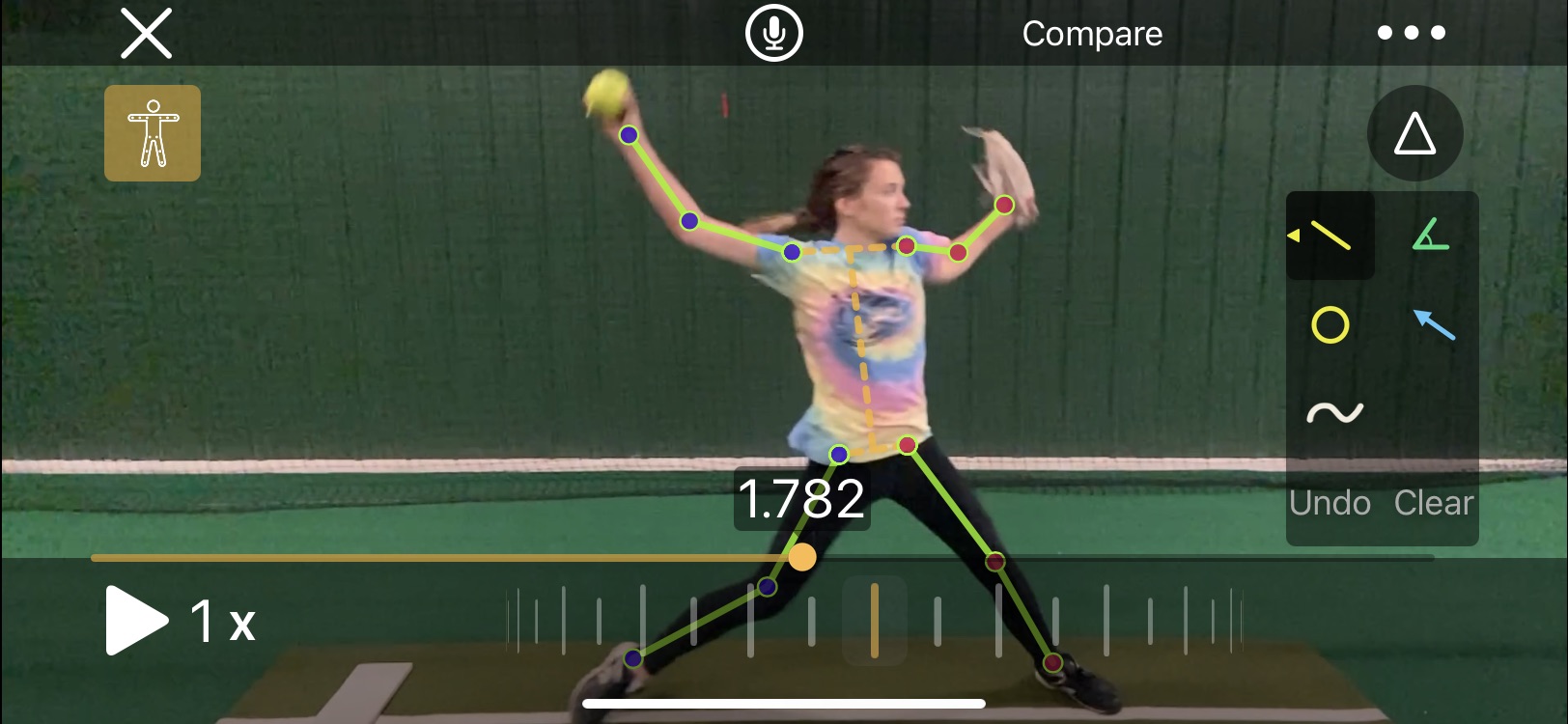
With the click of an icon OnForm will automatically mark every joint in the body and draw lines between them. Then, as you play or scrub the video, the skeleton lines will move with the player providing an unprecedented look at how how/she is moving through space. If the sequence of movements is important to you, you’re going to love this tool’s ability to display it.
Incidentally, the skeleton tracking overlay isn’t just for new videos. You can apply it to any video you’ve shot.
The toolset is rounded out by several additional capabilities, including:
- The ability to play videos through at full, 1/2, and 1/4 speed off a dropdown menu
- Two scrubbing tools – one which moves quickly through the movement, letting you go back and forth, plus a wheel that makes much finer movements so you can show subtle details
- An undo button to remove one line, circle, etc. at a time as well as a clear button to remove all markings
- A compare button that allows you to bring in a second video, whether it’s a previous video from that player or a pro example you’ve stored in a Reference Content folder, to provide a side-by-side comparison
- The ability to flip the video, which is handy if you want to, say, compare Cat Osterman or Monica Abbott to your right-handed pitcher
- Ability to trim the video to get rid of time between activities or other excess footage
- Editable titles and tags so you can mark exactly what was happening (such as which pitch a pitcher was throwing)
- Ability to edit the name, I suppose in case you got it wrong or the name changes
- Ability to save certain videos as favorites so you can find them more easily later
That’s a lot of capabilities, right? But we’re not done yet!
Recorded Analysis/Online Lessons
If you want to wait until later to analyze the video and then share the file with the player or parent, you can also do that. The Record feature gives you the option of recording the screen and live sound or just the screen.
You can pause the video in the middle or record straight through. Once it’s recorded it automatically plays a preview so you can check your work.
From there you can save the video as-is, trim the front or back, or discard it. If you’re happy with it you can share it directly through OnForm (if you’ve invited the player to join) or through email, messaging or some other app.
Pricing
Ok, now it’s time to get to the nitty-gritty. OnForm offers four different packages depending on your needs. Each comes with a one-week free trial so you can see whether it’s what you want. Be sure to double-checking pricing here since it may have changed since this blog post was written.
The first is a Free package that limits you to 10 videos in your account. If you don’t think you’ll be using it much, but want the option to shoot the occasional video, this one should work for you.
Next up is the Personal package, If you’re working with your own kids only (as opposed to coaching a team or being an instructor) this one should work for you. For $5/month or $49/year you can capture, store and analyze up to 500 videos as well as create up to 5 analysis videos in a 30-day period.
The Coach package (which is the one I have in case you’re interested) provides unlimited videos and analyses/voice over lessons for one coach, as well as allowing any invited athletes to upload unlimited videos to you for free. It also gives you the ability to create notes to go with each video and broadcast lists to reach multiple players at once. This package isn’t cheap, at $29/month or $299/year, but if you plan to use it a lot I think you’ll find it’s worth it.
Finally, OnForm offers the Team/Academy package, which includes everything in the Coach package along with the ability to create three (3) coach accounts rather than one so multiple coaches can access and use the same videos. That one is $69/month or $699/year. It’s probably best-suited to collegiate teams, large travel programs or facilities that offer teams.
My Take
So how is it in practice (no pun intended)? I think it’s tremendous, and a significant upgrade over the products I’ve used in the past.
Creating the videos and marking them up is fast, easy and reliable. They are really helpful with illustrating what is happening and what needs to be done. For pitchers I love being able to draw a single line and show the forward/backward tilt of their bodies.
As previously mentioned I love the way the videos are organized. Rather than having to come home and tag each video, they’re already in the right folders and available. I’ve even moved some videos into one of the Reference Content folders so I can easily call them up to show what famous fastpitch players do.
The analysis tools are easy to use as well, and I definitely love being able to easily discard a video and start over rather than having to wait for it to render (as I did in Coaches Eye) before I could delete one I knew went bad.
Do I wish it was cheaper? Of course, who wouldn’t? But the value is there, and OnForm is continuing to develop the product and add new features so as long as the value is there I think it’s worth paying the price.
Finally, there is their support. When I contacted them to ask why the skeleton tracking feature wasn’t showing up in my iPad they got back to me within 12 hours to explain you need an A12 chip or higher for that feature to be available.
Bummer, but at least they got back to me quickly which is great. They also have a way for users to request new features (I’m going to ask for a clock face drawing tool), and a blog to keep you up-to-date when something new is introduced.
I wholeheartedly recommend OnForm as a training tool for fastpitch softball players. As a bonus, you can use it for many other sports and activities as well, so if you have, say, a softball player and a golfer, one instance will work for both.
Check out the free one-week trial. I think you’re going to let what you find.






 Life in the Fastpitch Lane